Pin configuration in the Devicetree Manager
In Zephyr, a peripheral gets its pins through pinctrl. Its pinctrl-0 property lists the pin settings of its default state, and pinctrl-names names that state "default". Each pin setting says which function a pin carries and how it is driven: pull-up or pull-down, push-pull or open drain, drive strength, slew rate.
Each vendor writes pinctrl its own way. With the Devicetree Manager you pick the pin and the signal, and it writes the vendor's form, with the pin settings that vendor's boards use. This page shows the common steps; the vendor pages show what is written for each vendor.
Route a pin
- Type the peripheral in the "Find feature" box, for example
usart3. The pads that can carry its signals light up on the chip. - Click a pad, then click the signal in the Functions card (TX, RX, ...).
- Do the same for each signal. The header flags a missing one, for example a UART RX without its TX.
- If the peripheral is disabled, set its
statustookay: routing a pin does not turn it on.
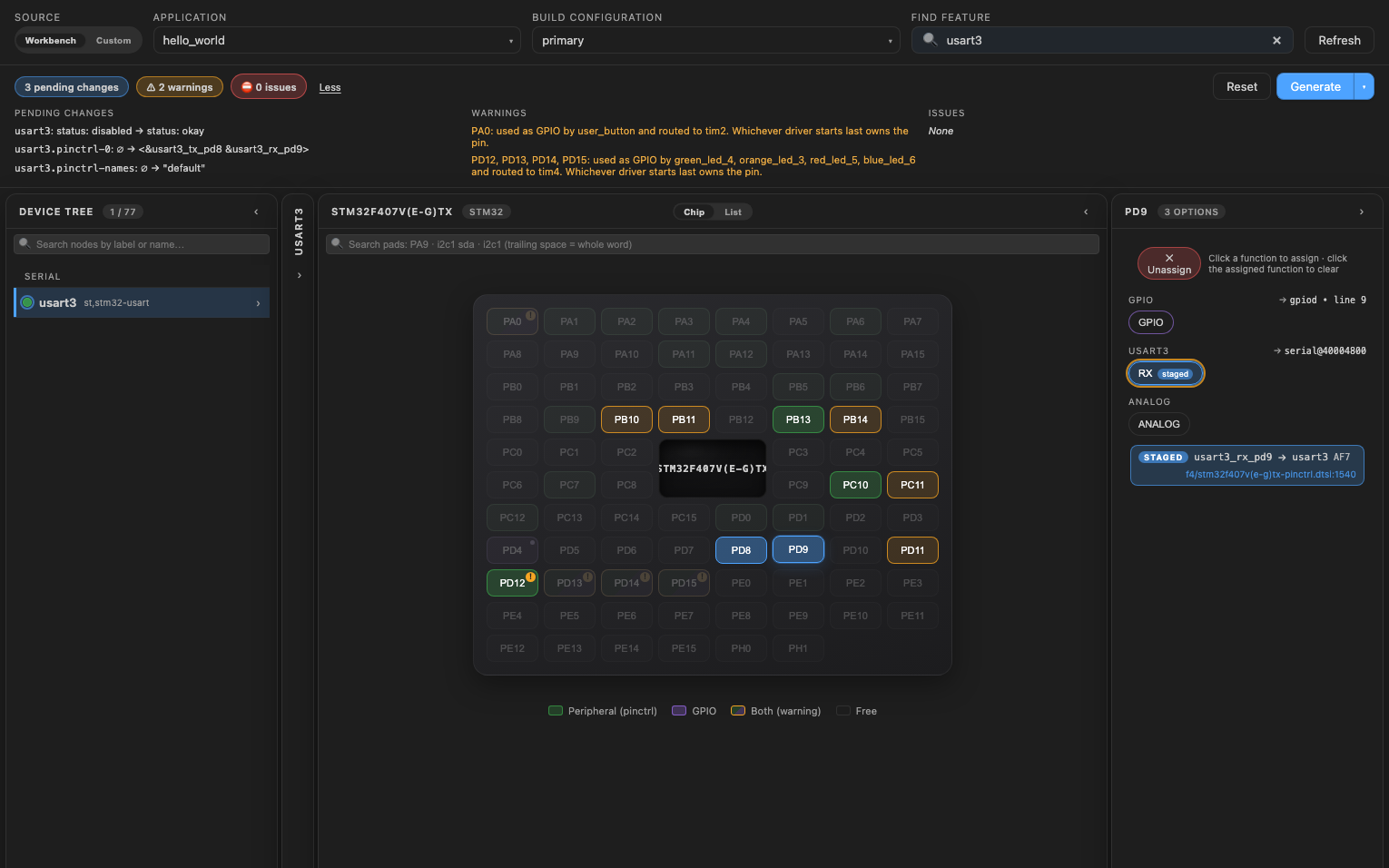
To remove a signal, click it again in the Functions card, or click "✕ Unassign" to free the pad. To move a signal to another pin, add it on the new pin first, then remove it from the old one.
Right-click a pad to list every signal it can carry.
Pin nodes and pin groups
Vendors write pinctrl in one of two ways.
Pin nodes (STM32, Infineon, TI MSPM0 and CC13xx, CC26xx, CC23x0): each pin setting is a node of its own, and pinctrl-0 lists them.
&usart3 {
    pinctrl-0 = <&usart3_tx_pd8 &usart3_rx_pd9>;
    pinctrl-names = "default";
};
Pin groups (NXP, Microchip, ESP32, Silicon Labs, Renesas, TI CC32xx): the peripheral points to one node of its own, whose groups list the pins and share their settings.
&i2c1 {
    pinctrl-0 = <&pinmux_i2c1_default>;
    pinctrl-names = "default";
};

&pinctrl {
    pinmux_i2c1_default: pinmux_i2c1_default {
        group1 {
            pinmux = <I2C1_SDA_GPIO26>, <I2C1_SCL_GPIO27>;
            bias-pull-up;
            drive-open-drain;
            output-high;
        };
    };
};
The manager adds a pin to the group the vendor uses for that signal, and creates the node when the peripheral has none.
Change pin settings
- Pin groups: open the
pinctrlnode, then its Groups tab (Pin Groups on some vendors). A group the manager creates shows its settings as checkboxes and lists. The board's own groups open like any node. - Pin nodes: click the pin in the peripheral's
pinctrl-0to open its node.
The settings offered come from the vendor's binding. Each vendor page says which ones the manager sets for you.
What the manager checks
- A signal routed to two pads, or a pad carrying two signals (a warning).
- A peripheral missing a signal it needs: SCL and SDA for I2C, TX and RX for a UART, the clock for SPI. See the peripheral guides.
- The vendor rules described on each vendor page.