Clock configuration in the Devicetree Manager
In Zephyr, the clock tree is in the devicetree: the oscillators, the PLLs and the bus dividers are nodes, and their settings are properties (div-m, mul-n, apb1-prescaler, ...). Each peripheral names the clock it runs on in its clocks property.
The Clocks view shows that tree with every frequency, lets you change it, and checks it against the chip's datasheet. No need to work out a single frequency by hand.
The screenshots use the STM32F4 Discovery board (stm32f4_disco). Supported devices lists the chip families the view covers.
Open the Clocks view
Click Clocks on the Pins | Clocks toggle, at the top of the chip card. Click Pins to go back.
From Node Detail, Show in Clocks opens the view on the clock or the peripheral you are editing.
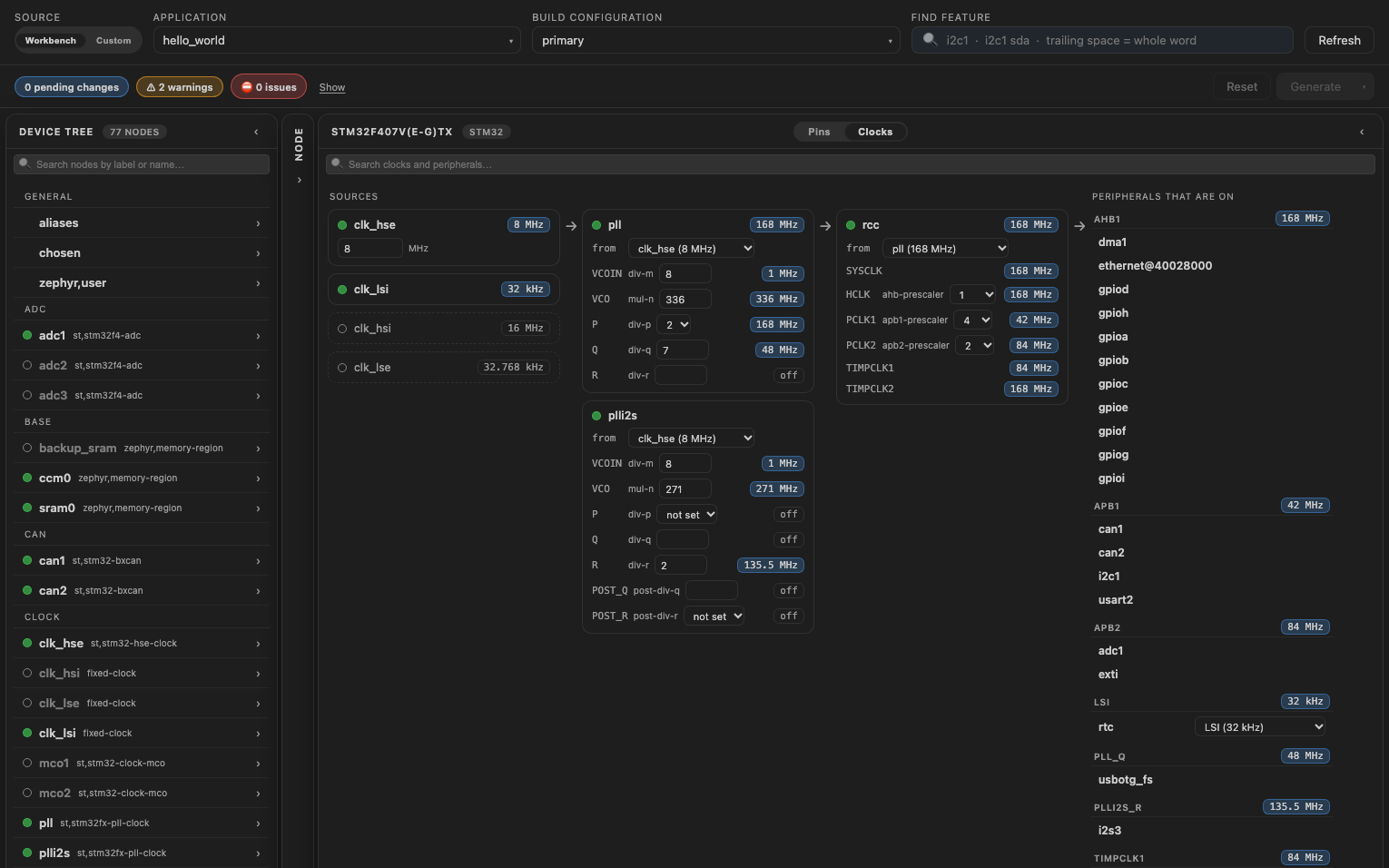
Read the tree
- Clocks run from left to right: the sources (oscillators), then the PLLs, then the buses.
- Each box shows the clock's frequency, its input (from) and its settings. A clock with several outputs, like a PLL or the STM32 RCC, lists each output with its frequency.
- A clock that is off has a dashed border.
- Peripherals that are on are listed on the right, grouped by the clock they run on.
- Hover a frequency to see the range the chip allows for it, when it has one.
- The search box filters clocks and peripherals by name.
- Click a clock's name to open its node in Node Detail.
Change a clock
- Change a setting in a box: a divider, a multiplier, or the input in from.
- Every frequency down the tree updates at once. The change is staged like any other edit.
- Click Generate to write it to the overlay, then rebuild.
For example, set the PLL's div-p from 2 to 4 to run the STM32F4 at 84 MHz instead of 168 MHz.
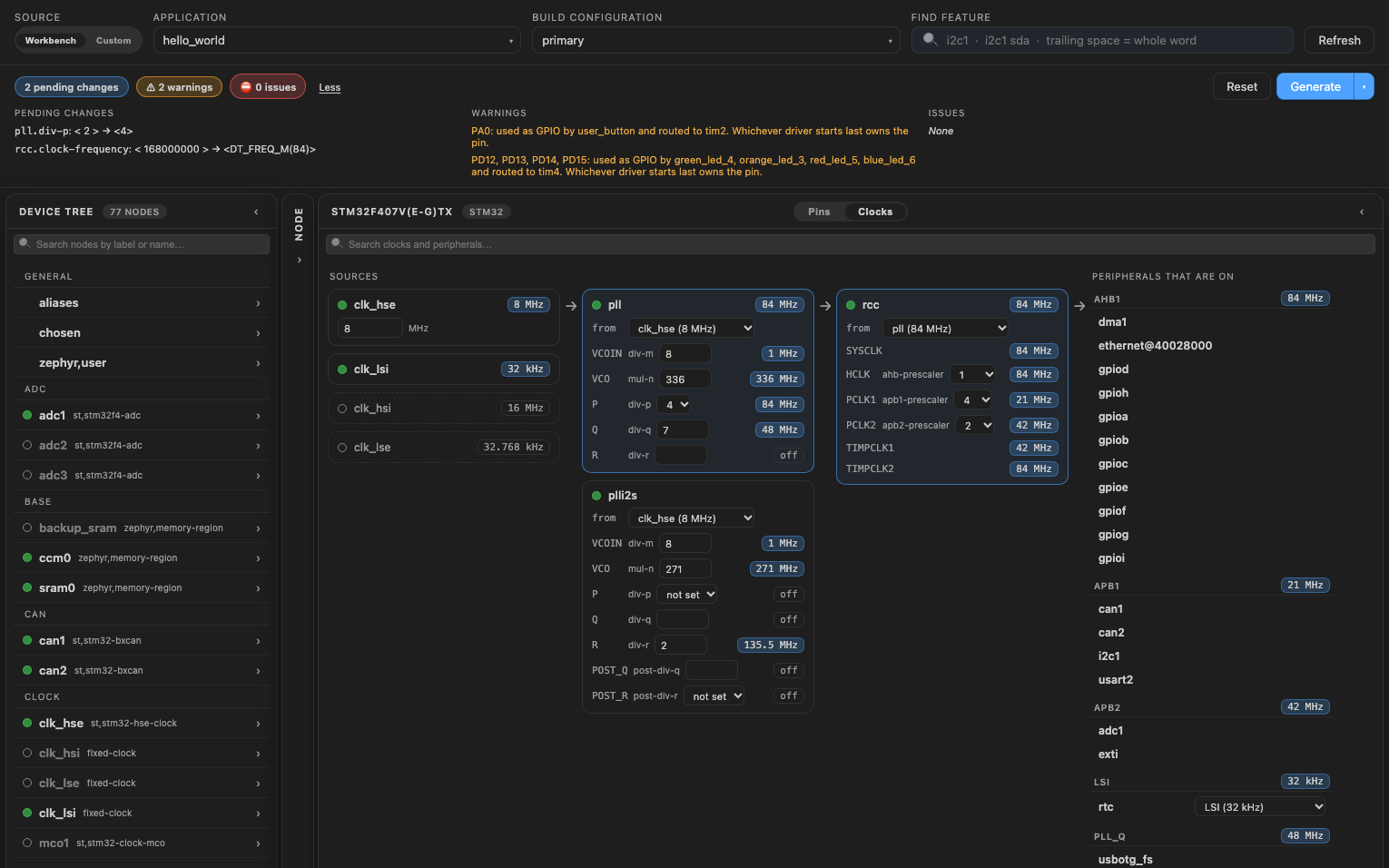
Generate writes:
&pll {
    div-p = <4>;
};

&rcc {
    clock-frequency = <DT_FREQ_M(84)>;
};
The manager updated clock-frequency too: Zephyr counts time from it, so it must match the core clock. When a board's own value is already wrong, its box shows a Set button that fixes it.
A peripheral with a clock setting of its own shows it in its row, for example the source of the STM32 RTC (LSE or LSI).
What the manager checks
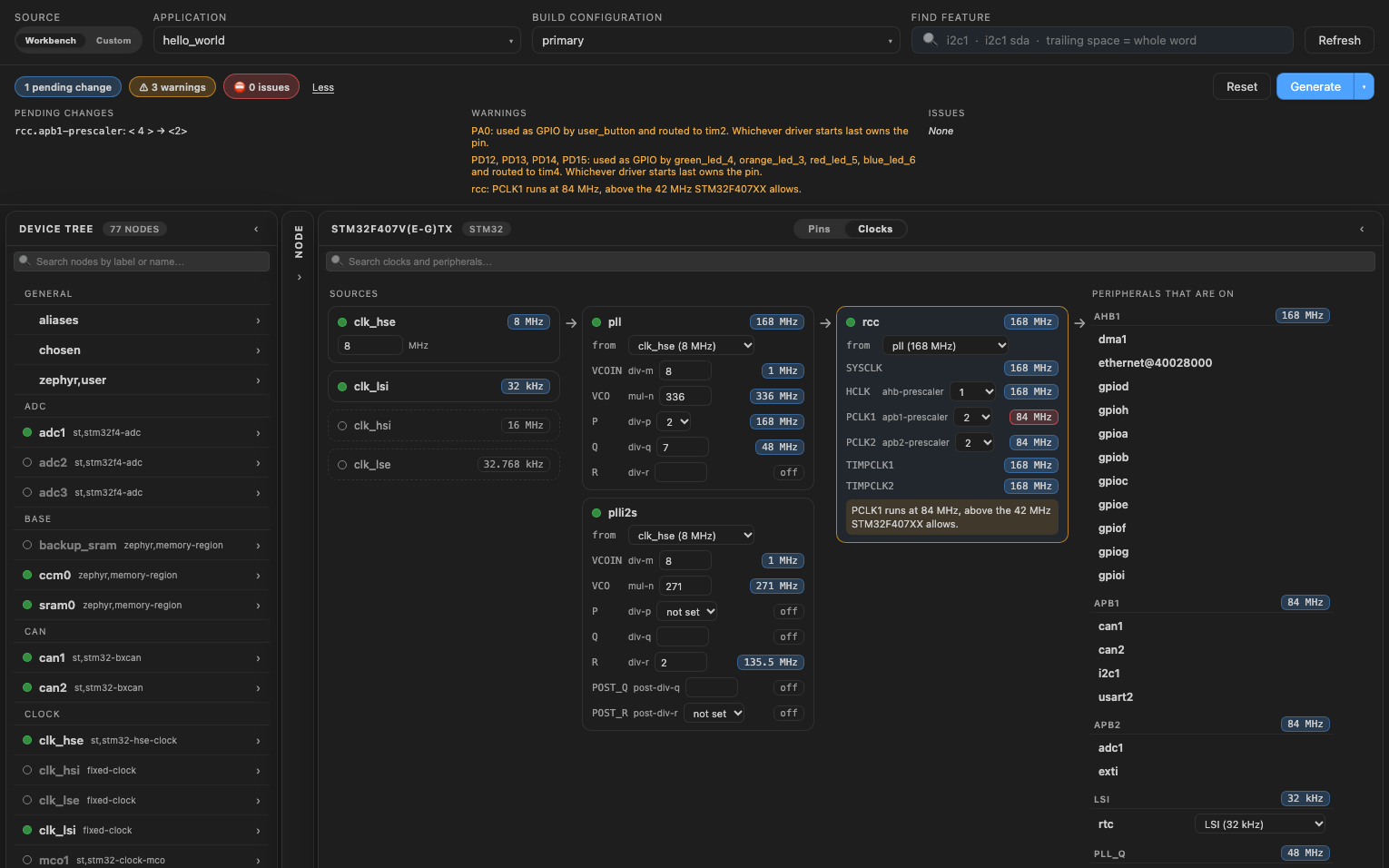
Warnings: the board builds, but the chip runs outside its datasheet.
- A frequency above or below what the chip allows. The frequency turns red and the box says why, for example "PCLK1 runs at 84 MHz, above the 42 MHz STM32F407XX allows."
- A peripheral on a clock that doesn't suit it, for example USB at 24 MHz instead of 48 MHz.
- The vendor's rules between clocks, on Renesas RA, for example "If the CANFD is used, PCLKA:PCLKB ratio must equal 2:1."
Errors: the board won't work as set.
- A clock or a peripheral fed by a clock that is off.
- A
clock-frequencythat doesn't match what the settings give. - A setting outside the range its binding allows.
- A setting Zephyr's clock driver refuses to build or to start, for example a TI MSPM0 PLL that is on while SYSOSC runs at 4 MHz.
The limits are those of the mode Zephyr runs the chip in. NXP Kinetis KE1xF and KE17Z512 have a faster HSRUN mode that Zephyr never switches to, so their warnings say "in RUN mode".