Python Environments and West Blobs
The Zephyr build system runs on Python: west itself and the packages it needs are installed in a Python virtual environment (venv). Workbench for Zephyr manages these environments for you, at three possible levels:
- A global environment, installed with the host tools and used by default.
- A dedicated venv per west workspace, shared by all the applications of that workspace.
- A dedicated venv per application, used only by that application.
The most specific environment wins: an application venv overrides the workspace venv, which overrides the global environment. The selected environment is used for builds, west commands, and the terminals opened by the extension.
The global environment is enough for most setups. Create a dedicated venv when you work with several west workspaces on different Zephyr versions, since each version may require different Python package versions.
Global environment
The global environment is created when you install the host tools. Nothing to configure: it is used whenever no dedicated venv is set.
If it gets corrupted, recreate it with Zephyr Workbench: Reinstall VENV from the Command Palette, or with the Reinstall global venv button in the Host Tools Manager.
Dedicated venv for a west workspace
At import time
In the Add West Workspace wizard, open Advanced options and check Create a dedicated Python venv for this workspace. A .venv folder is created at the workspace root, with west and the Zephyr Python dependencies installed. See West Workspace.
On an existing workspace
Right-click on the west workspace in the West workspaces view:
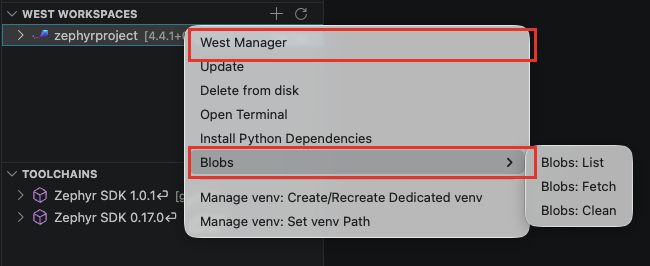
- Manage venv: Create/Recreate Dedicated venv: create the
.venvat the workspace root (or recreate it from scratch). - Manage venv: Set venv Path: point the workspace to a venv you already have. Type the venv root folder or browse to it. Leave the field empty to clear the override and go back to the global environment.
- Manage venv: Remove Dedicated venv (shown only when the workspace has a dedicated venv): after confirmation, the workspace goes back to the global environment and the
.venvfolder at the workspace root is deleted. A venv located elsewhere (set with Set venv Path) is not deleted from disk.
Dedicated venv for an application
At creation time
In the Add Application wizard, open Advanced options and check Create a dedicated Python venv for this application. A .venv folder is created in the application folder. See Applications.
On an existing application
Right-click on the application > Build Configuration > Python Environment:
- Create local Python Virtual Environment: create a
.venvin the application folder and use it for this application only. - Set local Python Virtual Environment: point the application to an existing venv. Leave the field empty to clear the override (the application goes back to the workspace or global environment).
- Set global Python Virtual Environment: open the settings on the global environment path. Leave it empty to use the default environment installed with the host tools, or set it to a venv of your own.
Install Python Dependencies
Some Zephyr modules declare extra Python packages. To install everything a workspace needs, use one of:
- Right-click on the west workspace > Install Python Dependencies
- The package icon on the workspace row
This runs west packages pip --install in the environment used by the workspace. Run it when a build fails on a missing Python module, or after changing the Zephyr revision or the imported modules.
west packages requires a recent Zephyr version (around 3.6 or newer). On older trees, install the packages manually with pip from the workspace terminal (right-click on the west workspace > Open Terminal).
West blobs
Some modules rely on binary blobs (for example vendor HAL firmware) that are downloaded separately from the sources.
At import time
In the Add West Workspace wizard, the Fetch west blobs checkbox (under Advanced options, checked by default) downloads the blobs right after the workspace is set up. If some blobs fail to download, the import still completes and you can retry later.
On an existing workspace
Right-click on the west workspace > Blobs:
- Blobs: List: print the blobs declared by the workspace modules, with their status, in the output panel.
- Blobs: Fetch: download the missing blobs (runs
west blobs fetch). - Blobs: Clean: delete all fetched blobs, after confirmation. They can be fetched again later.
West blobs require Zephyr 3.2 or newer: the Blobs menu only appears on such workspaces, and the wizard skips the fetch on older versions. On Zephyr 4.2 and newer, click-through blob licenses are accepted automatically during the fetch.