Toolchains
Workbench for Zephyr manages the toolchains used to build your applications. You can install and register:
- Zephyr SDK: the official SDK with GNU toolchains for all supported architectures
- ARM GNU Toolchain: the GNU-based ARM cross-compilation toolchain
- IAR ARM Toolchain: the IAR compiler for Zephyr
- Rust Toolchain: the Rust compiler with Zephyr embedded targets
Toolchains are registered globally. They are shared across all applications and workspaces.
Add a toolchain
Open the Add Toolchain panel from any of these entry points:
- Click on Add Toolchain in the Workbench for Zephyr shortcuts view
- Click on the + button in the title bar of the Toolchains view
- If the Toolchains view is empty, click on the Import Toolchain welcome link
At the top of the panel, the Toolchain family: radio selects what to install: Zephyr SDK (default), ARM GNU Toolchain, IAR ARM Toolchain, or Rust Toolchain. The form below changes with your choice.
Zephyr SDK
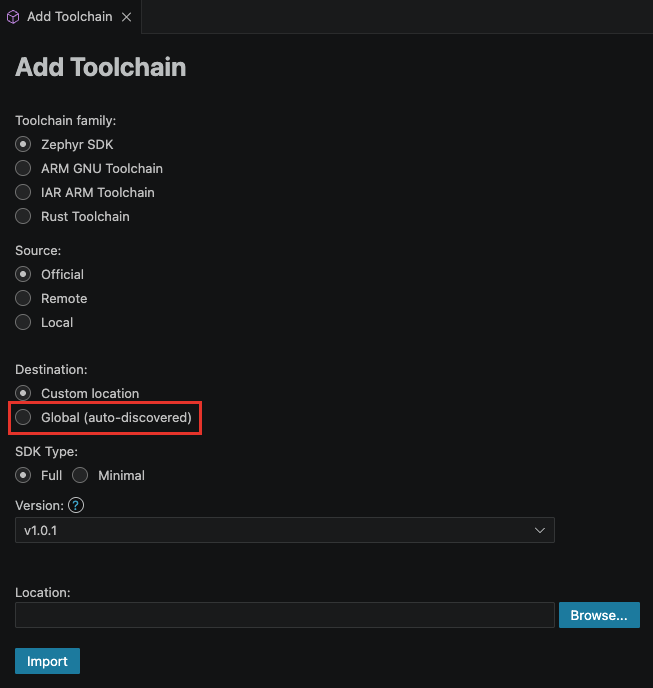
Select the Source:
- Official: download the SDK from the official Zephyr release servers
- Remote: download an SDK archive from a URL you provide in the Path: field
- Local: register an SDK already installed on your machine (only the Location: field is needed)
For the Official source:
- Choose the Destination:
- Custom location: the SDK is installed into the folder you set in Location:
- Global (auto-discovered): see Global Zephyr SDK below
- Choose the SDK Type:
- Full: all toolchains for every supported architecture
- Minimal: only the toolchains you select
- Pick the Version:. Releases are listed newest first. The ? icon next to the field opens the SDK compatibility matrix.
- With Minimal selected, a checkbox list of the toolchains available for that version appears (for example
arm-zephyr-eabi,aarch64-zephyr-elf,riscv64-zephyr-elf). Xtensa toolchains are grouped under a collapsible Xtensa toolchains section. Check the architectures you need. - With Minimal selected and an SDK version of v1.0 or later, an extra Include LLVM/Clang toolchain checkbox lets you install the LLVM toolchain alongside the GNU ones.
- Click on Import.
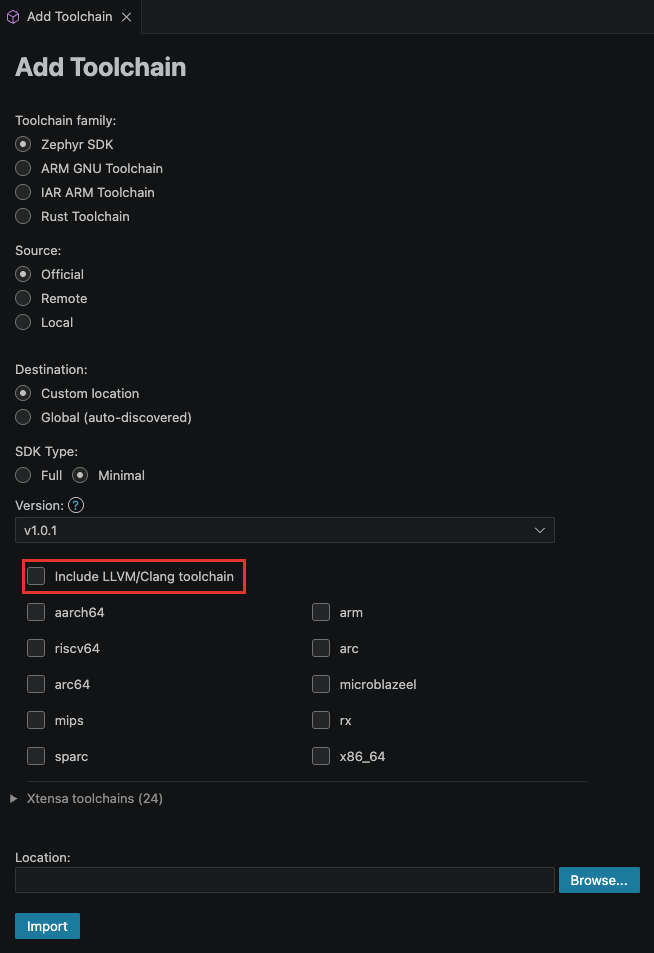
You can add more toolchains to a Minimal SDK later, directly from the Toolchains view. See Manage toolchains.
Global Zephyr SDK
Choosing Destination: Global (auto-discovered) installs the SDK the same way west sdk install does. The Location: field is replaced by an Install location: dropdown listing the standard install folders on your system (your home directory is the default).
- The install runs as a cancellable progress notification and requires the host tools (west) to be installed first.
- Once installed, the Zephyr build system discovers the SDK automatically. No per-application configuration is needed.
- Global SDKs appear in the Toolchains view with a [global] badge. The extension detects them through the CMake package registry, the standard install locations, and the
ZEPHYR_SDK_INSTALL_DIRenvironment variable. - If the selected version is already installed globally, it is reused and only the selected components are added to it.
Delete from disk also works on global SDKs: right-click on the SDK in the Toolchains view > Delete from disk. It removes the SDK folder and cleans up its CMake package registration.
ARM GNU Toolchain
Workbench for Zephyr can import the ARM GNU Toolchain, which provides GNU-based ARM cross-compilation tools for building Zephyr applications.
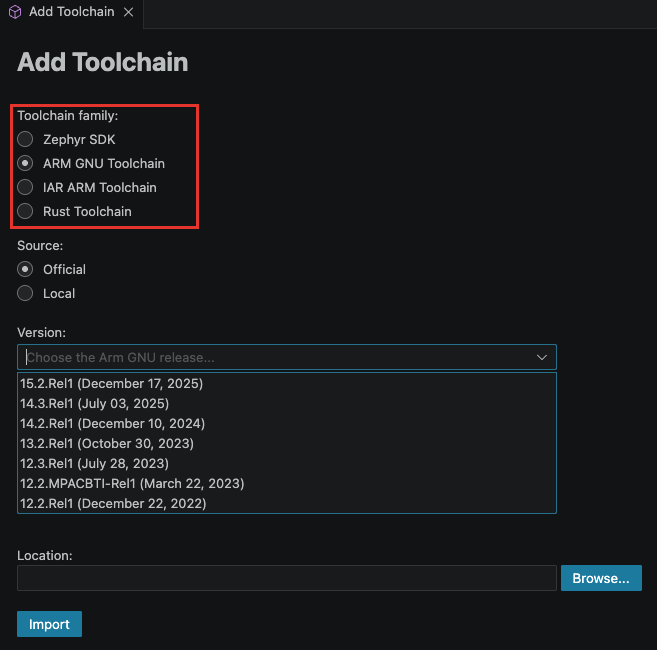
The form fields:
- Source:: Official downloads and installs the selected release. Local registers a toolchain already installed on your machine.
- Version:: the ARM GNU Toolchain release to install (release dates are shown in the list).
- Target:: the target architecture:
- AArch32 bare-metal (arm-none-eabi)
- AArch64 bare-metal (aarch64-none-elf)
- Install subfolder:: the folder name the toolchain is installed into. It is suggested automatically and you can edit it.
- Location:: the parent folder where the toolchain files are installed.
Steps:
- Open the Add Toolchain panel
- Select ARM GNU Toolchain as the toolchain family
- Select the Source, the Version, the Target and the Location
- Click on Import
The ARM GNU Toolchain provides the compiler and build tools for ARM targets. A Zephyr SDK installation may still be required for additional host tools used by the Zephyr build, depending on the project configuration and target platform.
Rust Toolchain
Workbench for Zephyr can install a Rust toolchain for Rust-based Zephyr applications.
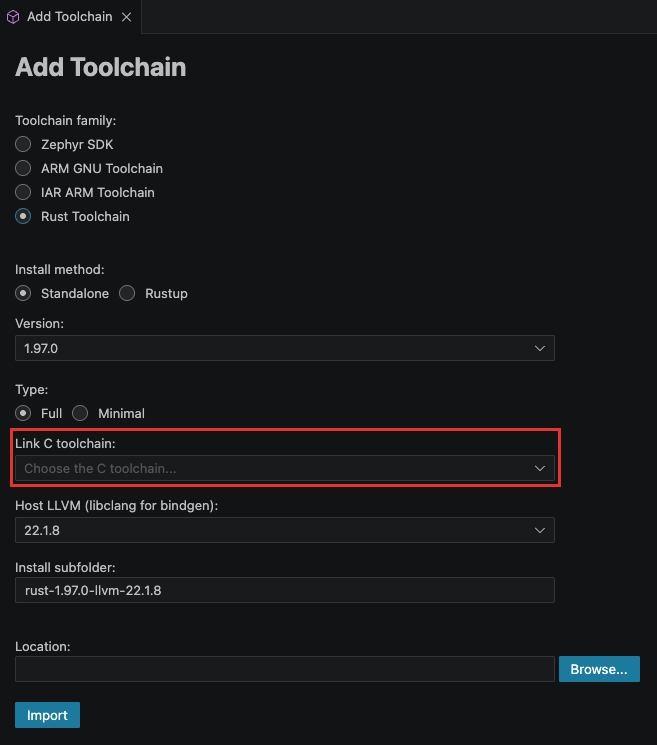
The form fields:
- Install method::
- Standalone: downloads a self-contained Rust toolchain into the folder you choose
- Rustup: installs and uses a rustup managed by Workbench for Zephyr (self-contained, your PATH is not modified). A status block shows the rustup state, with a Download and install rustup button when it is missing.
- Version:: the Rust release to install. With Rustup, the stable channel is also available.
- Type::
- Full: installs all Zephyr Rust targets
- Minimal: reveals an Embedded targets: checkbox list of the Zephyr Rust targets. The common Cortex-M targets (
thumbv7em-none-eabi,thumbv7em-none-eabihf,thumbv8m.main-none-eabi,thumbv8m.main-none-eabihf) are pre-checked.
- Link C toolchain:: select a registered Zephyr SDK or ARM GNU toolchain. Rust applications still need a C toolchain for the Zephyr build, so add one first if the list is empty.
- Host LLVM (libclang for bindgen):: the host LLVM release to download. It provides the libclang library used by bindgen to generate Rust bindings. A short list of suggested versions is shown; a Show all ... versions toggle below the list reveals every release.
- Install subfolder: and Location: (Standalone only): where the toolchain is installed. The subfolder name is suggested from the Rust and LLVM versions.
On Windows, the Standalone method also offers an Install MinGW-w64 GCC host tools (gcc, dlltool, ...) checkbox (checked by default). Keep it enabled unless you already have GCC host tools on your PATH.
IAR ARM Toolchain
Workbench for Zephyr can register the IAR ARM Toolchain for Zephyr.
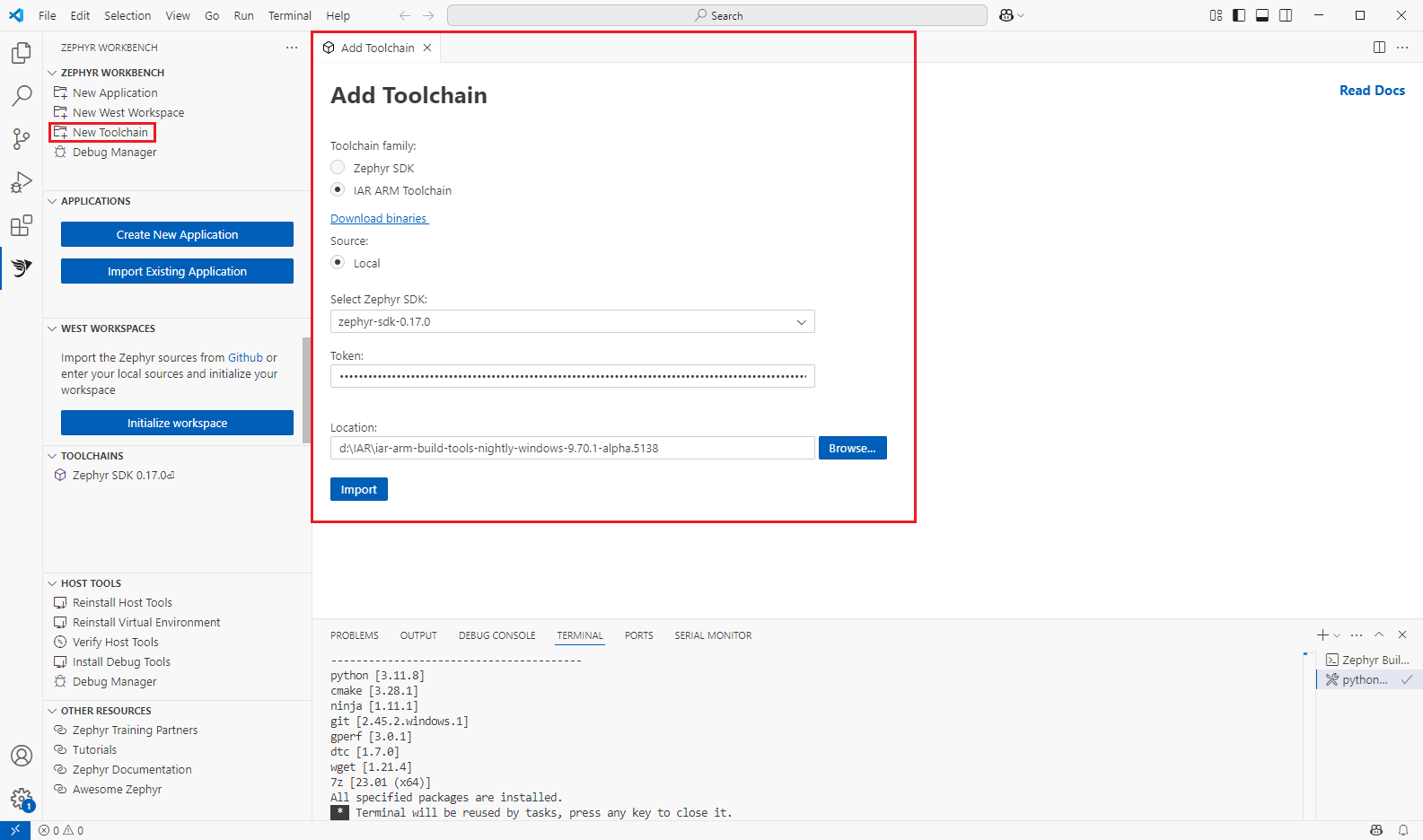
The form fields:
- Download binaries: this link opens the Zephyr IAR GitHub releases page where you download the toolchain archive. The Source: is Local only: extract the archive first, then register it.
- Select Zephyr SDK:: pick an already registered Zephyr SDK. The IAR toolchain relies on it during the build.
- IAR LMS BEARER TOKEN:: your IAR license token, entered as a password field.
- Location:: the folder where the IAR toolchain is extracted.
Steps:
- Open the Add Toolchain panel
- Select IAR ARM Toolchain as the toolchain family
- Select the Zephyr SDK, enter the IAR LMS BEARER TOKEN, and set the Location
- Click on Import
If you leave the token empty, a confirmation dialog explains that the IAR toolchain will be used under its perpetual license. Click on Continue to proceed without a token.
The Zephyr SDK is still necessary when building with the IAR ARM Toolchain. Tools such as the Device Tree Compiler (DTC), QEMU, and GNU utilities like the preprocessor and objcopy come from the Zephyr SDK.
SDK and Zephyr compatibility
When the SDK assigned to an application does not match the Zephyr version of its workspace, a non-blocking warning appears, for example: "Zephyr SDK 0.16.8 is only partially compatible with Zephyr 4.2.0 (recommended SDK: 0.17.4)."
Click on Open Compatibility Matrix in the warning to see the official compatibility table. The build is not blocked: the warning is informational.
Manage toolchains
Installed toolchains are listed in the Toolchains view in the sidebar.

How the tree is organized:
- Zephyr SDKs appear as
Zephyr SDK <version>. Globally discovered SDKs carry a [global] badge. - SDK v1.0 and later expand into GNU and LLVM groups listing the installed toolchains:
- The GNU group ends with Add GNU toolchain...: click it to pick and install additional architecture toolchains into that SDK.
- If LLVM is not installed, the LLVM group shows Install LLVM toolchain... to download it.
- IAR toolchains expand to show the Zephyr SDK they are associated with.
- Rust toolchains expand to show their linked C toolchain and, when set, a [host LLVM] entry.
Available actions (right-click on an entry):
- Add Toolchain: open the Add Toolchain panel.
- Add Toolchain to SDK...: install more architecture toolchains into an existing Zephyr SDK.
- Remove Toolchain: unregister a Zephyr SDK without deleting its files. IAR, ARM GNU and Rust entries have their own variants (Remove IAR Toolchain, Remove ARM GNU Toolchain, Remove Rust Toolchain).
- Delete from disk: permanently delete a Zephyr SDK's files (works on [global] SDKs too). The other families have Delete IAR Toolchain, Delete ARM GNU Toolchain and Delete Rust Toolchain.
- Change Linked C Toolchain (Rust): link the Rust toolchain to a different Zephyr SDK or ARM GNU toolchain.
- Change Linked LLVM (Rust): switch the host LLVM used for bindgen.
Registered toolchains whose folder no longer exists on disk are removed from the list automatically on startup and when you click on the Refresh button of the view.