IntelliSense Provider
The IntelliSense provider is the extension that indexes your application's C/C++ code: code completion, go to definition, find references, hover information and error highlighting in the editor. Each application uses one of two providers:
| Provider | Extension | Installed with Workbench for Zephyr |
|---|---|---|
| C/C++ extension (default) | C/C++ (Microsoft, ms-vscode.cpptools) | Yes |
| clangd | clangd (LLVM, llvm-vs-code-extensions.vscode-clangd) | No, install it yourself |
The provider is set per application: two applications in the same VS Code window can use different providers.
Requirements
C/C++ extension
- The C/C++ extension (Microsoft). Workbench for Zephyr installs it with its companion extensions.
- Basic completion works as soon as the application is created. Build the application once to get the exact include paths and definitions of your board.
clangd
- The clangd extension. In the Extensions view, search for
@id:llvm-vs-code-extensions.vscode-clangdand click "Install". If the clangd language server is not found on your system, the extension offers to download it: accept. - A build of the application. clangd reads the
compile_commands.jsonfile produced by the build: until the first build, clangd knows nothing about the application. - The C/C++ extension can stay installed. When clangd is selected, Workbench for Zephyr turns off the IntelliSense of the C/C++ extension for the application folder, so the same errors are not reported twice. Debugging with the C/C++ extension still works.
If the extension of the selected provider is not installed, the application gets no IntelliSense and no error is shown. Install the extension, then reload the window (command "Developer: Reload Window"): the application is already configured for it.
Choose the provider when you add an application
- Open the Add Application wizard (see Applications).
- Expand Advanced options.
- Under IntelliSense provider, select "C/C++ extension" or "clangd".
- Fill in the other fields, then click "Create".
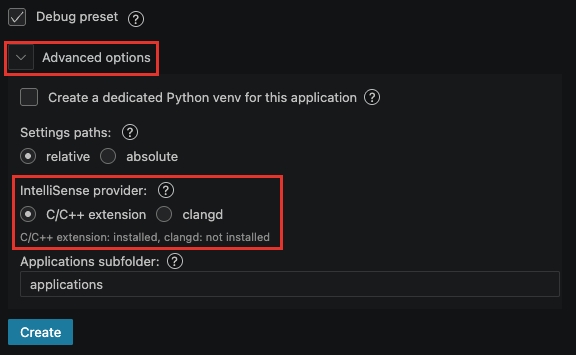
The line below the options tells which extensions are installed, for example "C/C++ extension: installed, clangd: not installed". The default selection follows it:
- "C/C++ extension" when the C/C++ extension is installed, even if clangd is installed too.
- "clangd" when only clangd is installed.
The same option applies when you select "Import existing application".
If you import an application without selecting a workspace, a toolchain and a board, the provider already stored in the project is kept.
Change the provider of an existing application
Right-click on the application > Build Configuration > Change IntelliSense Provider. You can also right-click on one of its build configurations.
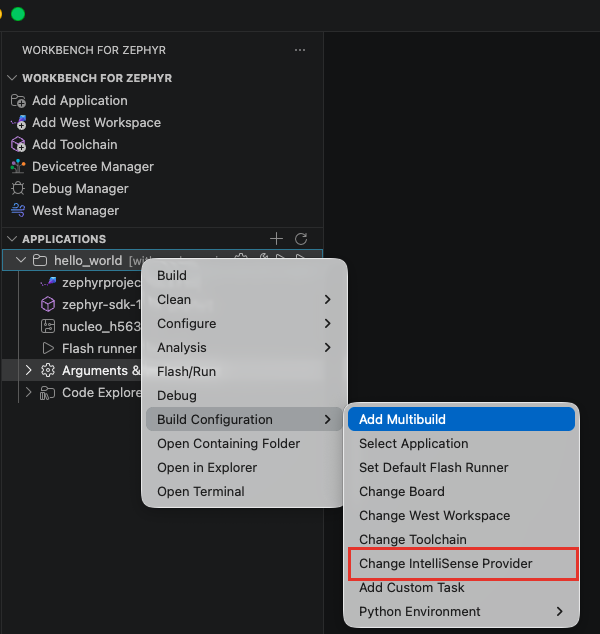
A quick pick lists the two providers:
- "C/C++ extension (cpptools)"
- "clangd"
The current provider has a check mark, and each entry tells if its extension is "installed" or "not installed". Select the provider, then press ENTER to confirm your choice.
The change applies right away. If you switch to clangd on an application that was never built, build it once.
Generated files
Workbench for Zephyr writes the provider configuration in the application folder, you do not have to edit it:
.vscode/c_cpp_properties.json: configuration of the C/C++ extension. It is always generated, whatever the provider..clangd(clangd only): tells clangd where thecompile_commands.jsonof the active build configuration is. It is updated when you change the active build configuration, the toolchain or Sysbuild, and deleted when you switch back to the C/C++ extension.
The generated .clangd starts with the line # Generated by Zephyr Workbench and is overwritten on each update. To use your own .clangd, remove that line: Workbench for Zephyr then never changes or deletes the file, but it no longer updates it when you change the active build configuration.
With clangd, the Problems view may show errors such as "Unknown argument: '-fno-reorder-functions'". clangd does not recognize some GCC options of the Zephyr build. These errors only affect the editor: the build is not impacted.
The provider is saved in the zephyr-workbench.intellisense.provider setting of the application (see Settings Reference). Prefer the menu above to change it: it also updates the generated files.