Change Board
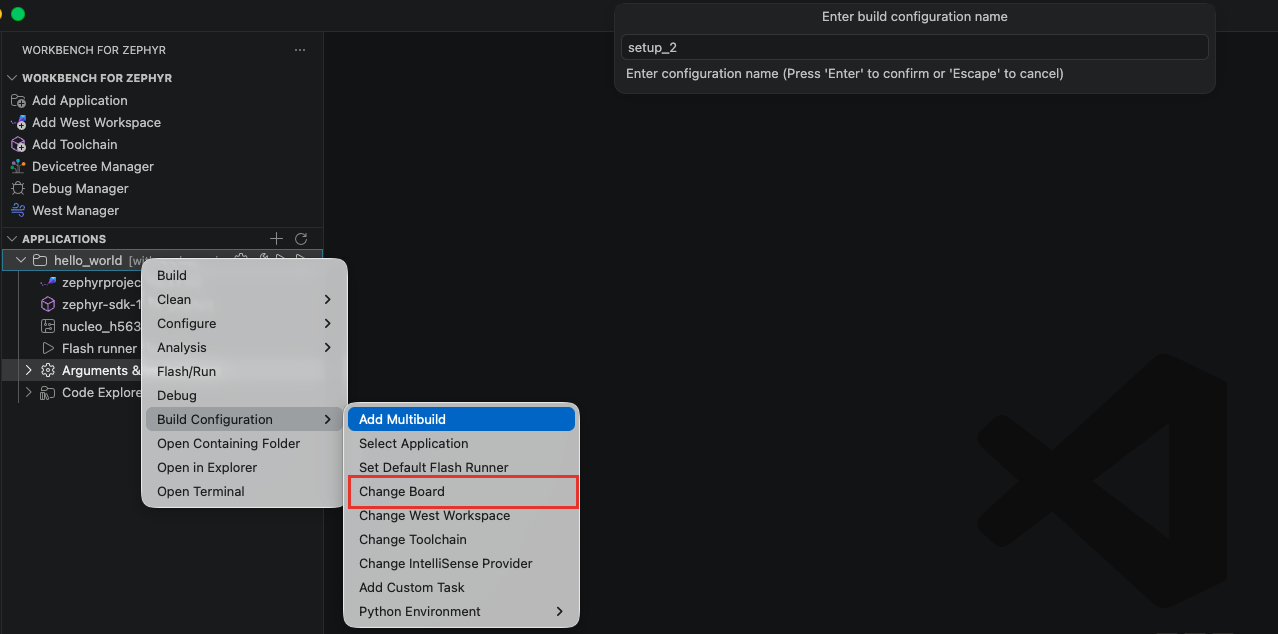
To change the application target board, right-click on the application > Build Configuration > Change Board. You can also right-click directly on the board child row of the application (or of a build configuration).
A quick pick lists the boards of the west workspace and the boards the application adds, including any custom boards. See How boards are found for the folders searched.
There may be a slight delay before the board selector appears: the extension runs west boards to discover the boards from the west workspace and any custom board locations, and reads the board definition files (board.yml and <board_identifier>.yaml).
Use the text area to search your target board, then press ENTER to confirm the change.
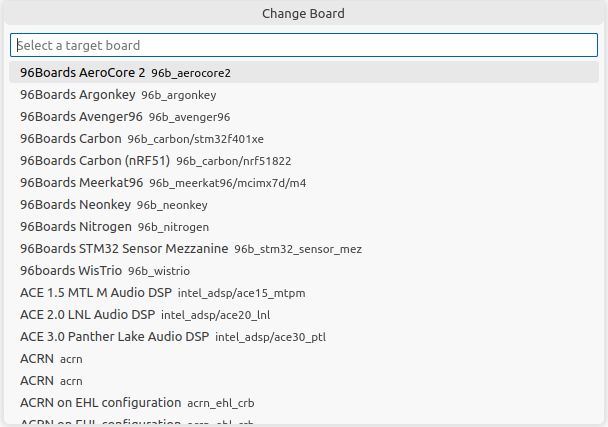
If your board is not listed, choose "Enter custom board..." at the end of the list and type the board identifier manually (format: board[@revision][/soc[/cluster][/variant]], as accepted by west build -b).
With several build configurations, run Change Board from the build configuration (or its board row) you want to modify. From the application menu, the change applies when the application has a single configuration. See Multibuild.
After changing the board, run Clean > Rebuild/Pristine so the build is fully reconfigured for the new target.