SPDX and SBOM
A Software Bill of Materials (SBOM) is an inventory of every component that ends up in your firmware image, written in the standard SPDX format. Workbench for Zephyr generates SPDX documents for an application build and can check them for known vulnerabilities with the SBOM Total service.
All SPDX features live in the "Applications" view:
- Right-click on the application > Analysis > SPDX
- The same submenu is available on a build configuration; the commands then apply to that configuration.
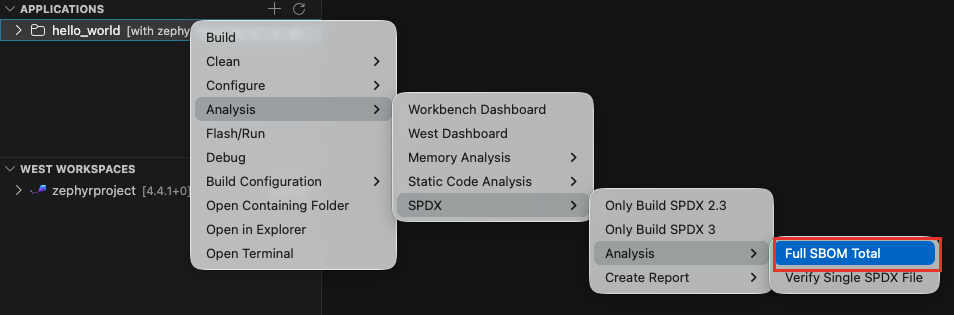
Build SPDX documents
- Only Build SPDX 2.3: generates SPDX 2.3 (tag-value) documents.
- Only Build SPDX 3: generates an SPDX 3.0 (JSON-LD) SBOM. It requires Zephyr 4.5.0 or newer; on an older tree, a warning offers "Generate SPDX 2.3 instead".
Both commands run a full pristine build: the build directory is deleted, prepared with west spdx --init, the application is rebuilt with build metadata enabled, then west spdx writes the documents into the spdx folder of the build directory.
The features below (Full SBOM Total, Verify Single SPDX File, Create Report, the API token command and the sbomTotal.* settings) are available in the next release of the extension.
Full SBOM Total
Right-click on the application > Analysis > SPDX > Analysis > Full SBOM Total.
One command runs the complete check:
- Builds the SPDX documents if they are missing; an existing document set in the build directory is reused.
- Merges the document set into one lean SBOM, saved under
spdx/sbom-totalin the build directory. - Checks it against the SBOM Total service and shows the verdict as a notification.
The progress notification can be cancelled at any time.
The verdict is clean, review or risk, with the number of actionable vulnerabilities, the number of findings to review, and the score. The notification offers:
- Open in Browser: open the scan result page.
- Open PDF Report: download and open the PDF report.
- Details: open the output channel with merge statistics, vulnerability triage, NTIA minimum elements, maturity and the result link.
- Rescan (force): shown on cached results only; re-submits the SBOM to the service.
Results are cached by content: rerunning the analysis on an unchanged SBOM reuses the previous scan and the notification ends with "(cached result)". Use "Rescan (force)" to get fresh data, for example after new CVEs have been published.
The SPDX version follows the zephyr-workbench.sbomTotal.spdxVersion setting. With the default auto, SPDX 3.0 is used when the Zephyr tree can generate it, SPDX 2.3 otherwise. Exactly one version is scanned per run; there is no fallback between versions at scan time.
If the verification service does not accept SPDX 3.0 uploads yet, the error notification offers "Use SPDX 2.3 and retry". To make that permanent, set zephyr-workbench.sbomTotal.spdxVersion to 2.3.
Verify Single SPDX File
Right-click on the application > Analysis > SPDX > Analysis > Verify Single SPDX File.
Pick any SPDX file (.spdx, .json or .jsonld): it is checked against the service and reported with the same verdict notification. Use it for documents that were not generated by the extension.
Create Report
Right-click on the application > Analysis > SPDX > Create Report, then choose the format:
- PDF Report
- Word Report (DOCX)
- Markdown Report
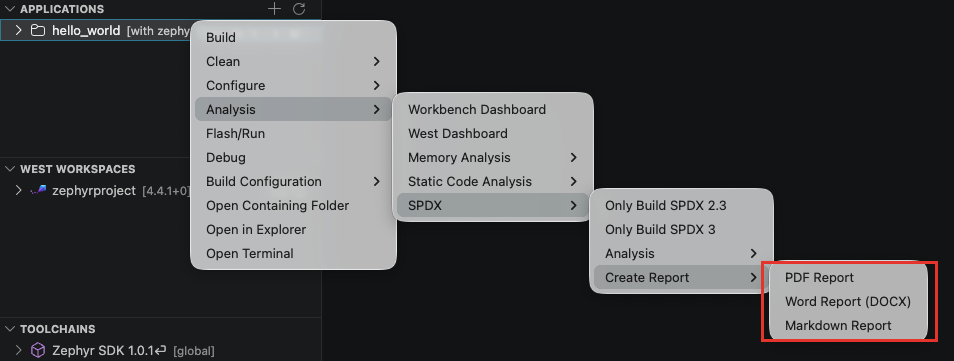
The report is produced from the same analysis (a cached scan is reused when possible) and saved under spdx/sbom-total in the build directory. Markdown reports open in the editor; PDF and DOCX reports open in the default external application.
The report contains the scan summary (verdict, quality score, format, component count), the per-engine results, and the vulnerability list with severity and exploit probability:
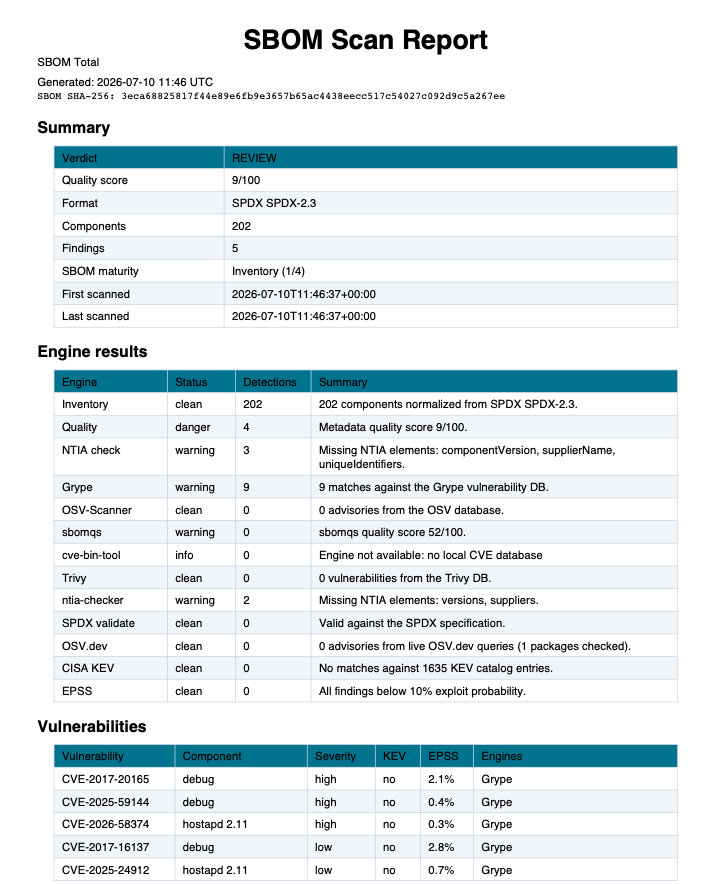
API token
Scans work out of the box: no account is needed. To tie scans to your own SBOM Total account, run "Zephyr Workbench: Set SBOM Total API Token" from the command palette and paste your personal token (sct_...). The token is stored securely on your machine. Leave the input empty to clear a stored token and go back to the built-in token.
Settings
The behavior is controlled by the following settings (File > Preferences > Settings, section "Zephyr Workbench"):
| Setting | Default | Description |
|---|---|---|
zephyr-workbench.sbomTotal.baseUrl | https://sbomtotal.com | Base URL of the verification service. Change it if you use a self-hosted instance. |
zephyr-workbench.sbomTotal.spdxVersion | auto | SPDX version generated and analyzed: auto (3.0 when the Zephyr tree supports it, else 2.3), 2.3, or 3.0. |
zephyr-workbench.sbomTotal.failOn | actionable | When the scan is reported as failed: actionable (any actionable vulnerability), risk (only a risk verdict), never (always informational). |
zephyr-workbench.sbomTotal.includeSdk | false | Also generate sdk.spdx and scan it separately as build environment information. It never changes the firmware verdict. |