pyOCD Manager
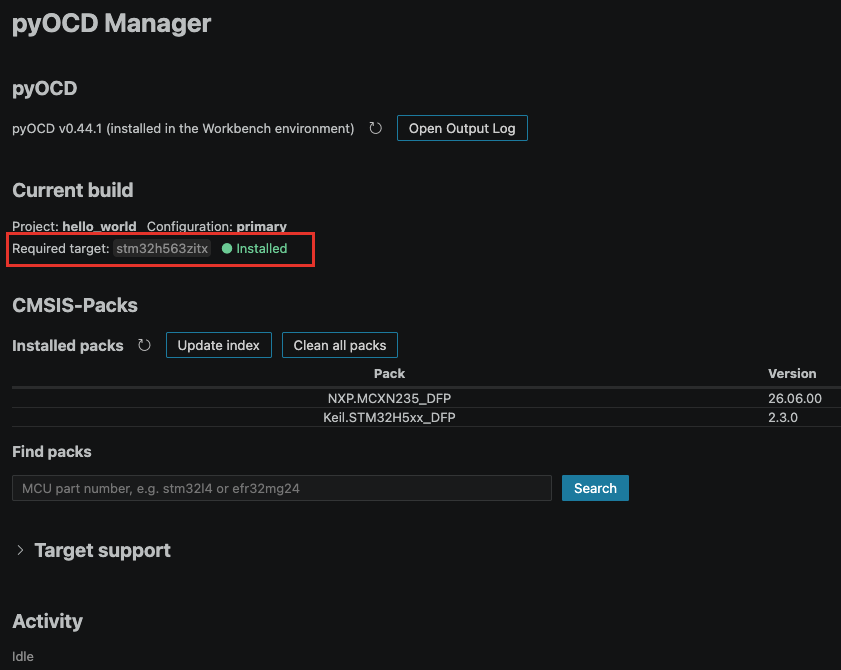
pyOCD needs target support for your exact MCU before it can debug or flash it. A set of targets is built in; the others are provided by CMSIS-Packs downloaded on demand. The pyOCD Manager shows the pyOCD installation used by Workbench for Zephyr, tells you whether your current build's target is supported, and lets you manage the CMSIS-Pack index and installed packs.
Open the pyOCD Manager
The pyOCD Manager is not available from the command palette. Open it with the gear button on the pyOCD row:
- In the Debug Manager, next to the runner dropdown when the pyOCD runner is selected (tooltip: "Open pyOCD Manager (CMSIS-Packs, targets)"). You can also click the "pyOCD Manager" link in the pyOCD target status line.
- On the Install Runners page, on the pyOCD row (tooltip: "Open pyOCD Manager (packs, targets)").
Opening it from the Debug Manager passes the selected application and build configuration, which fills the "Current build" section.
pyOCD status
The "pyOCD" section at the top shows the detected installation:
- A status line showing the version, for example "pyOCD v0.37.0 (installed in the Workbench environment)", or "pyOCD: not found" when it is missing.
- A refresh icon ("Re-check pyOCD version") and an "Open Output Log" button that shows the log of the pyOCD commands run by the manager.
- If pyOCD is missing, a banner appears with an "Open Install Runners" button: install pyOCD from there, then come back.
Some pyOCD versions are known to misbehave. If your version has a known issue, a warning banner appears under the status line. For example, pyOCD 0.36.0 has a known issue debugging Zephyr from VS Code; installing a newer version is recommended.
Current build
This section appears when the manager was opened with an application context. It shows:
- "Project:" and "Configuration:": the application and build configuration you came from.
- "Required target:": the pyOCD target name your build needs, with its status: "● Installed" or "✗ Not installed".
If the target is not installed, the manager resolves which CMSIS-Pack provides it. Click "Install target support" to download and install that pack. The download can take a while; progress appears in the "Activity" section at the bottom, where you can cancel it.
If no target is shown, build the configuration first. The target name is read from the build output. Some boards do not define pyOCD runner arguments at all; those cannot be debugged with pyOCD.
CMSIS-Packs
This section manages the pack index and the packs installed on your machine:
- "Update index": downloads the CMSIS-Pack index. It is required for pack search and automatic target installs. Run it once, and again later if a search comes back empty or outdated.
- "Installed packs": the list of installed packs with their versions, and a refresh icon ("Refresh installed packs"). When empty, the builtin targets remain available.
- "Find packs": type an MCU part number (for example
stm32l4orefr32mg24) and click "Search". Each result row has an install button ("Download and install this pack"). - "Clean all packs": deletes the pack index and every installed CMSIS-Pack, after a confirmation. Pack-provided targets disappear until their packs are reinstalled.
Target support list and activity
- The "Target support" section (collapsed by default) lists every target pyOCD currently knows. Filter by name, part number, or vendor, and by source (builtin or pack) to check what a pack brought in.
- The "Activity" section shows the operation in progress with a progress bar and a "Cancel" button. One operation runs at a time; long operations also appear as a cancellable VS Code notification. If an operation fails, use "Show Log" or the "Open Output Log" button to see the details.