Install Runners
Runners are the external tools (OpenOCD, J-Link, vendor programmers, drivers) used to flash and debug your target board. The "Install Runners" panel lets you install them, check their versions, and point Workbench for Zephyr to tools you installed yourself.
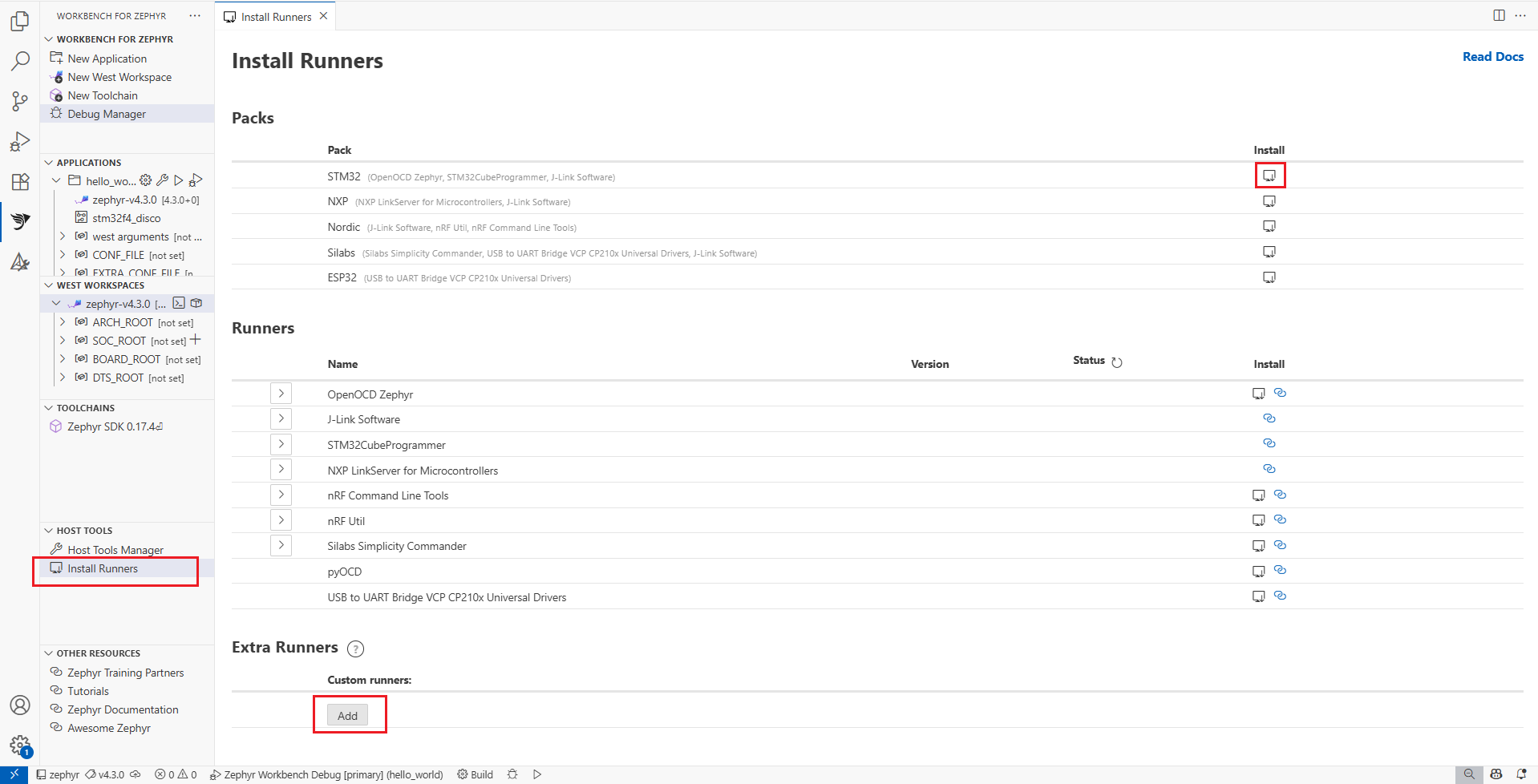
To open it, click on "Install Runners" in the Host tools view. The panel is also proposed right after the host tools installation.
Not every target board is supported by every runner. Refer to your board manufacturer's user manual to know which tool to install.
Packs
Some targets require several tools. Packs group them per vendor so you can install everything in one click using the download button on the pack row.
Available packs (filtered for your operating system):
| Pack | Bundled tools |
|---|---|
| STM32 | STM32CubeCLT, OpenOCD Zephyr, J-Link Software, Udev Rules for STLink, JLink and libUSB (Linux) |
| NXP | NXP LinkServer for Microcontrollers, J-Link Software |
| Nordic | nRF Util, nRF Command Line Tools, J-Link Software |
| Silabs | Silabs Simplicity Commander, USB to UART Bridge VCP CP210x Universal Drivers, J-Link Software |
| ESP32 | OpenOCD ESP32, USB to UART Bridge VCP CP210x Universal Drivers |
| Infineon | OpenOCD Infineon |
| Texas Instruments | OpenOCD TI |
Tools that cannot be installed automatically open their vendor download page instead, then you install them manually.
Runners
The Runners table lists each tool with its detected Version and its Status:
- Installed: the tool was found on your system.
- Not installed: the tool was not found.
- New Version Available: the tool was found but a newer version can be installed.
Use the refresh button in the Status column header ("Refresh installation status") to re-run the detection after installing something outside VS Code.
To install a tool:
- Click the download button on its row ("Download and Install automatically").
- For tools that require a manual download, click the link button instead: it opens the vendor website where you download and install the tool yourself.
If a tool is installed in a non-standard location, expand its row (chevron on the left), click "Edit", fill the "Path:" field (or browse to the folder), then click "Done" to save. The "Add to PATH" checkbox controls whether the tool is added to the environment used by the extension.
Uninstalling tools is not supported yet.
OpenOCD variants
Expand the OpenOCD row to see the available distributions: OpenOCD Zephyr (default), OpenOCD ESP32, OpenOCD xPack, OpenOCD TI, OpenOCD Infineon, and OpenOCD Custom. Each variant can be installed independently, and the "Set default" radio selects which one the extension uses.
For TI targets (CC13xx/CC26xx, CC23xx, MSPM0 and others) with an XDS110 probe, install OpenOCD TI and set it as default. It is the TI build of OpenOCD shipped with Code Composer Studio.
With Zephyr SDK 1.x and later, the default OpenOCD is passed to the build system. After changing it, run a pristine rebuild (right-click on the application > Clean > Rebuild/Pristine) so the build picks up the new tool.
J-Link
J-Link Software from SEGGER supports a large number of devices across vendors. Click its install button: a dialog reminds you that J-Link is distributed under the SEGGER J-Link terms of use. Check "I have read and accept the SEGGER J-Link terms", then click "Download & Install".
pyOCD
pyOCD is a Python based tool for programming and debugging Arm Cortex microcontrollers. Install it from its row like any other runner: it installs into the Python environment used by Workbench for Zephyr. pyOCD needs a CMSIS-Pack per target family: click the gear button on the pyOCD row ("Open pyOCD Manager (packs, targets)") to manage packs and target support in the pyOCD Manager.
ST-LINK drivers
For STM32 targets with an on-board or external ST-LINK probe, a driver is required so the probe is recognized as a USB device:
- On Windows, install STM32CubeCLT. It includes most of the STM32 tools, including the ST-LINK GDB Server and STM32CubeProgrammer, which provides the ST-LINK USB driver.
- On Linux, install Udev Rules for STLink, JLink and libUSB from the Runners table. It sets up the udev rules for the common debug probes.
Extra Runners
Extra Runners add custom tool locations to the PATH used by the extension, for a runner that is not in the standard list.
- Click "Add".
- Enter the folder of your tool in the "New Path:" field and press Enter.
- Use "Edit" or "Remove" on an existing row to update or delete it.